I’m here to write about my PhD, Designer of Philosophy. Actually, I’m just writing about my design philosophy.
So, what do I think about when looking at different designs and creating designs? Broadly speaking, a good design to me is a design that is intuitive and fulfills the purpose it is meant to serve without too many extra options or steps. The design should be all set up already and shouldn’t require users to change their settings to make it better (Interesting article about users not changing their default settings). It if makes sense, it’s probably good. Call me basic.
Bad design would basically be the opposite. Something like putting buttons in places that people wouldn’t normally look for would be unintuitive. Having extra features that almost no one would use would be a part of bad design too. If no one uses these features, then are they needed? There are many situations that may lead to bad design. For example, the company might have asked for a new feature and the developers just added it into the code without thinking about the design aspect.
So how do I create good design? I think creating good designs requires an understanding of why or what am I creating. For example, if I’m creating a website, what is the purpose of the website? Who is the audience and what are they looking for? What do they want to do on this website? By asking these questions, I can think about the users and the kinds of interactions they may or may not do on my website.
If I’m not as familiar with the kind of website, application, etc, that I’m designing for, doing research would be a good idea here. For the website example, research would be similar to a competitive analysis. I would look at other websites with a similar purpose and understanding the differences and similarities between them. Research could also involve critiquing these other websites and making sure to not do what they might be doing wrong. There are many different ways to approach research.
Then comes the prototyping and testing. Quick, low fidelity prototypes can be made at the beginning just to check the structure of the website and if users are using it the way I’d imagine they would or if there is anything missing. Using the feedback given to me, I can try to understand their struggles, if any, and improve the prototype. For example, users might think an area is clickable when its not. It could be that I thought the clickable size was okay when making the prototype, but it turns out that people expected it to be bigger. Both positive and negative feedback are important though. Positive feedback lets me know what I should try to keep even if I change things up.
Once all of that is done, sprinkle some flavor on top of the website. This goes back to the question of, “Who is the audience and what are they looking for?” If the audience is looking for professional help, make the website seem more professional and formal. For example, don’t use too many bright colors. Make contrasts sharper, be more formal in your wording. If the website is supposed to be more friendly and welcoming, try using some warm colors.
Looking to improve your job board? Well, my group, consisting of Di, Luis, and Kevin from my Human-Computer Interaction class, decided to give an attempt at solving the unsolved problem of how to display job descriptions. We wanted to create a format that would minimize the time a job seeker would need in order to decide whether or not they want to apply to a job. Currently, the structure of a job post is not standardized within and between different job boards as you can see below from Glassdoor, LinkedIn, Indeed, and Monster.
State of the world (of job boards, and initial thoughts)
One of the reasons why job posts do not have a standardized format is because each company has their own way of creating job posts and most job boards allow companies to post jobs descriptions in any format. Some of these job boards require payment for companies to post jobs, so job boards want to reduce the amount of work companies need to put in. By doing this, less companies are discouraged from posting on their website and the job board can get more revenue. The job board also generates more traffic to their site this way in that job seekers will be able to select from a wider pool of jobs since more companies are posting jobs on that board. This addresses the concern of the job posters who want to publicize their job openings without too much effort (P1). Although this benefits job posters, job seekers have to deal with differences in organization of information. This leads to more difficulty for job seekers to scan through these job posts since the information they’re looking for, such as requirements (S1) or the responsibilities (S2) of the position, aren’t always in the same position in the screen. As a result, job seekers have to spend more time looking at each job post and they do not get to apply to as many jobs as they could if less time was spent looking through job posts (S3).
Job posters also want to hire someone who is best suited for their available positions (P2). This may lead to a long list of requirements, but those requirements will turn down many job seekers. As a result, job posters are left with not many applicants to select from, possibly not finding anyone that they’d like to hire. How should job posters format their job descriptions so that they can attract job seekers who have the right amount of skill but not scare or discourage too many of them?
Summarized concerns
Job posters want to:
P1: publicize their job openings without too much effort
P2: get candidates who have the skills required for succeeding in these positions
Job seekers want to:
S1: find jobs that they qualify for
S2: find jobs that do work they’d want to do or companies whose missions align with the seeker’s own missions
S3: apply to as many jobs as possible if they are currently unemployed
I’ll refer back to these in my writing just to show the trade offs we had to think about.
After some considerations about what UI aspect we should change to address the problem, we decided our goal was to standardize the subsections within a job post without creating too much additional friction for job posters in the form of additional forms or questions to answer for their job posts. To reduce friction, our initial idea was that by using Natural Language Processing (NLP) in some form, we’d be able to sort through the job description a job poster posts and reformat it based off of content (e.g. move all the content about the requirements to a different part of the job description). Also, since some job posts don’t have a lot of information, we were also thinking of auto-generating some content based off of what the job poster put into the description. LinkedIn already implements this for the personal summary, so it is possible.
Standardizing all job posts in general is still a bit of a big task though, so we mainly focused on standardizing the format for software developer positions in the US and we assumed that the user was able to work in the US (e.g. doesn’t need a visa). Different fields have different jargon and kinds of requirements, so by focusing on software developer positions, we limited the amount of jargon we needed to account for in our prototypes. We also knew more about the kinds of requirements for software developers, such as knowing specific languages or frameworks, so it would be slightly easier to implement some kind of parsing.
So what did we do? We designed the UI/structure of job posts based off of feedback from users on our designs and ideas, and we implemented a program that can detect programming languages in a job post on Monster or in a txt file. Our program ranks the detected languages on a scale of 0 to 2, with 0 being a language that is not required but nice to have and 2 being a language that is requirement and the job seeker must know the language very well for the job. Although our program does not use NLP, I talk about future steps for integrating NLP into it to make it more robust.
Background Research
The first step to coming up with a direction for our solution was research. We looked at different websites and what they had to say about the job search process and also what people are looking for in jobs. Some websites we looked at include:
Summary: Job descriptions might be hard to understand because companies are trying to get candidates with certain soft skills (P2), which are themselves hard to define.
For example, how do you define ability to resolve conflicts? Companies might look for candidates who have worked in teams instead, since they are more likely to be in situations where they have to resolve conflicts compared to candidates who have not worked in teams. However, people do not have to have worked in teams in order to be good at resolving conflicts.
Summary: There are many way a job description can be bad, with some of them being ambiguity, unrealistic/impossible requirements (P2), and bad job titles.
These websites show the kinds of problems users might have when reading job posts. One of the main issues was vague job requirements, especially for soft skills. Although a company can ask for good communication, it’s unclear what good communication would consist of or how communication will manifest in the job. However, it is often the case that companies care about these soft skills because soft skills aren’t necessarily teachable. Although people can be guided to obtain a soft skill from a mentor, they have to put in the effort in order to truly have the skill.
Example of learning a soft skill. For example, people might give updates to their teammates because they’ve been told that good communication includes that. However, just giving updates is the bare minimum and people cannot obtain good communication skills if they don’t go beyond that. For example, they can ask for help, provide constructive feedback on someone else’s work, or let others know that they can’t do anything else for their own work until someone else is done with their work. It might be unclear to some people how to communicate in these ways; at what point do you ask for help, how do you make your feedback not sound like a personal attack, or how do you communicate your needs. If a person is not good at communication, they have to reflect about why their previous communications were not effective and how they can change it to be more effective in the future. By doing this multiple times, then they can truly obtain good communication.
There was also vagueness in defining skills. For example, how do you compare years of experience to words like familiar with or proficient? Although these problems in defining and comparing different requirements weren’t a major consideration when we first thought about our topic, they got us to reconsider how we should present or get this kind of information. Job seekers need to know this information in order to decide whether or not to apply (S1), but job posters are not being clear about what they want because it is hard to define (P1). If companies don’t have well-defined job descriptions, how should we get better ones? We could ask the company to provide us more information, but that is more work on their end (P1). Actually, companies are already being asked to fill in additional information on LinkedIn about the desired skills and education they want from candidates. However, it would be best if we don’t create a system where companies are required to fill in additional information so that the amount of effort required to use our system would be less.
Another website we looked at was Stack Overflow’s Developer Survey. We used content from their job priorities section to create a survey for people, mostly college students, to take. This survey was used in order to assess what kind of information people were looking for in a job post, which would guide us towards the changes we might want to try out, such as putting the information that people thought were more important at the top and information that people thought were less important at the bottom (S1, S2).
We also looked at current job boards and what were good and bad about their job descriptions and eventually made a very rough wireframe.
Design – Wireframes and User Tests
Round 1
The idea behind our first wireframe was that users would be able to move around the sections to fit it to their preferences. For example, an experienced professional might want to learn more about the job responsibilities instead of the requirements since they might be looking for a specific kind of work (S2), whereas a recent graduate might want to look at the requirements instead in the hopes of finding any job (S1) (sad-face). The experienced professional could move the job responsibilities to the top of the page while the recent graduate could move the requirements to the top of the page instead.
We then created some wireframes to test out our idea and whether it made sense to users (for our tests, users were mainly college students looking for jobs) that they could drag the sections around. Our control in our user tests was an “optimized” LinkedIn job description. In the screenshots below, 2 and 3 were what we were showing to users, while 1 was shown after in order to see whether or not we should have the gray bars in 2. Users were asked which one they liked better and what aspects of each they liked or didn’t like.
Our users were split between the modularized design and the optimized LinkedIn design. One common comment that stood out in our tests was that the users didn’t typically understand what the gray bars (click-to-drag area) were. A lot of users thought the bars were there to separate between different block of information. It wasn’t clear to them that the gray area was draggable, partially because it’s hard to signify that something is draggable, but also because it’s not intuitive to be able to drag different sections of a job post around. People usually just read job posts and that’s it. Our user testing got us to reconsider our redesign a bit, and we decided to scrap the idea of draggable sections. Here’s a transcript between my good friend Dogda and me that really summarizes what we got from our first user testing. He basically brought up all of the concerns other users have also found with our modularized design.
Transcript, “first one” refers to our modularized design
Me: Let’s say you were looking at job posts. Which format/organization of information do you like better out of these two and why?
Dogda: why you askin
Me: school
Dogda: do your own homework :rage: but it’s obviously the first one
Me: what part of the first one do you like better
Dogda: all the sections are grouped by relevancy
Me: what do you think the gray bars are in the first one
Dogda: what do you mean they’re supposed to be different sections right?
Me: uh they’re supposed to be draggable areas we’re also checking to see whether it’s clear or not how we have it in the picture
Dogda: why would I was to drag things around on your ad
Me: have job postings be organized differently depending on your preferences
Dogda: Why would I do that on the fly that’s your job
Me: well there’s gonna be a default order if people want to change it, they can some people are good at filtering searches and some aren’t LOL
Dogda: Why don’t you just make them expandable sections and put the title on the bar
Me: too much work if users have to expand everytime they open a new post
Dogda: why don’t you just default to expanded
Me: i’m thinking some more we could make it save the expanded/not expanded settings i guess
“that’s your job” Haha wow. We liked his idea of expandable/collapsible sections though, so we decided to incorporate it in some wireframes for our next tests. Users generally like the structure of our modularized design whereas they generally liked the optimized LinkedIn design because it was plain and simple with no extra features, such as the gray draggable bars. At this point, we had a mini panic attack (I was mostly laughing at their reactions though) about having to code up a website that implemented our design and then having user tests on the coded up website. I guess fortunately, we didn’t have to actually code up a whole website, so we made our prototype on Google slides instead. Here’s a GitHub repository of some very rough code though. The JobPost1.html page just shows how making the collapsible sections would work.
Round 2
We thought more about the display of information and got inspiration from another job board, RippleMatch, and from a Chinese job board call Lagou. RippleMatch inspired us with the idea of using icons to display information about required skills, while Lagou inspired us to add (more) tags about the job/job requirements into the top section.
We were thinking of using color to also help with the display of information by making the color correspond to how necessary it is to have that skill. This would solve the ambiguity of the requirements in that different people could spend different amounts of time with a language or framework but still have the same knowledge while two people spending the same amount of time with a language or framework could have different levels of knowledge. Indicating how necessary a skill is for the job (aka, how well a user should know that skill) would help a user decide whether or not they want to apply. For example, if a job required a lot of SQL and candidates should know SQL very well before applying, a user might not want to apply to that job if they don’t know SQL. But if the job requires SQL but only for a small portion of it, the company might be okay with hiring people who don’t know SQL, so the user might consider applying. Using color would also make it faster for people to scan through job descriptions since they wouldn’t have to read as much text and they could get a good idea of the requirements just by glancing at a heatmap.
Here are the wireframes we used for our second round of testing:
We got rid of the idea of using icons to describe hard skills as we made the wireframes for them. It was a bit hard to find good icons for them (and the icons format didn’t look too good either), but we were thinking about whether or not we even knew the icons for different languages. There was an idea that if someone didn’t know the icon, then they didn’t know the language well enough, but it’s possible that there are professionals out there who don’t know what the icon for a specific language/library looks like. People don’t need to know the icon in order to use the language/library.
We still had some mixed results from our second user test though. For example, some users didn’t like our ordering and would rather have information about the job come before the job responsibilities. I think a part of this was because some users had a different use case where they also cared about the specific kind of work they’d be doing in whatever positions they’d apply for. Users were mostly okay with having expandable sections, although one didn’t even want to have that option available, most likely because he didn’t see a point in hiding parts of the job description.
As for our heatmap, there were mixed reactions to it when it was in one long column in the side bar (because it looked a bit intimidating), but in other wireframes, users generally found it helpful as a visualization of the requirements. Someone might ask here why we didn’t use different colors to visualize the requirements, and the answer to that is that too many colors might be distracting and how would the users know what the colors mean? Different colors don’t have too much of an inherent meaning in them about skill level (unless you think about traffic light colors, but those colors are a bit distracting and may be hard to read). A color gradient makes more sense to people’s idea of skill level in that the strength of the hue corresponds to a skill level, with stronger hues meaning higher skill levels. And this was seen in our user tests where users were able to tell us what the different colors meant.
Users were especially mixed for the bolded format of our job description, especially as they looked at it longer and noticed that words that seemed like they should be bolded, such as “possess”, are bolded. This was partially our fault for bolding too much, but users said that they would like the bolded format if it was toned down since it guided them to look at those phrases. They also liked having the minimum and preferred requirements separated since it made it easier for them to know whether or not they were qualified for the job.
Funny transcript when I asked my sister whether she liked the bolded version over the non-bolded verision of the same job description; first one is non-bolded, second is bolded
Me: which one do you like better
Sister: BAHAHA IS THAG EVERN A QUEISFON THE ONE WITH Bded SHIT OFC BOLDED
Me: why do you like that one better?
Sister: I CAN ACTUALLY FOCUS ON WHAT I NEED TO POSSES like obvious programming skills but which one the othe rone is kinda blocky
Me: there’s not too much bolded text?
Sister: like everything seems way too seamless it is a little bit too much like left side is kinda tooooooo much kinda actually LMAO I KINDA JUST WANT PROGRMAMING LANGS TO BW BOLDED LMAO 2+ years part no need o shit the more i look at it the more i like the first one LMAO
That 180 flip from liking the bolded version to the non-bolded version.
Round 3
So, we were supposed to present our final prototype at the computer science showcase, but we used that chance to do some more user testing on the people who showed up. Our prototype did not change much, but we made some design changes based off of the feedback. We decided to make the heatmap horizontal so that it would take up less space compared to being vertical. We also removed the ability to collapse the sections since people don’t generally think of collapsing parts of job descriptions either. We also moved the minimum and preferred requirements to be stacked instead of side-by-side since having them side-by-side seems suggests that there’s a comparison of some kind going. However, users don’t need to compare the two to each other.
For these user tests, we present the user with either real job posts or our modified versions and had them pick a job to apply for out of all the job posts there. We timed how long the users took to choose a job, and they were on average faster. We also asked for their feedback on our design and showed them the other set of jobs posts and asked them for additional feedback. Additionally, we asked them about the Bold View button to see if it made sense to them. The idea behind the bolded button was that not everyone wanted to see the information in a bolded format in our previous user test.
The main thing we got from these user tests was that they liked the bolded format and would rather have it on by default. The users were also pretty happy about the heatmap, although one wished that the question mark icon for it was more obvious so that they knew where to go if they didn’t know what the colors meant. I’m not really sure how we would do that, although we could move the question mark icon to be directly right or left of the text before the heatmap. For the final prototype, I think it would be best if the bolded format was present by default and if there was no Bolded View button since that’s an extra feature that’s not needed. More screenshots (the question mark icon didn’t get moved)!:
Implementation
So, we have this idea and this design for it, but how would we actually get tit to work? We were planning to implement NLP and named entity recognition (NER) for our prototype for generating the heatmap tags and colors, but we ended up implementing it by looking at the content of each line in the job description. You can view the code here (the repository and file name is a bit misleading because they contain NLP). We also had code to make the heatmap boxes, although in the future, we would want to generate the heatmap boxes with HTML/CSS/JavaScript and a database of the jobs and their tags.
The fake NLP program takes in a job description and then prints out the coding languages and the heatmap levels associated with it, with 2 being the highest or strongest color and 0 being the lowest. It can take in a txt file or a job post from Monster. It compares the words in each line to our own library of coding languages taken from Wikipedia, although we haven’t made it perfect. One problem we had with our implementation was that “B”, the coding language, was getting picked up when the job description used “B” as a list label (like A, B, C). We just removed “B” from our library. With NLP and named entity recognition, what we could do is tag all of the words in the line with their part of speech (POS) and use that information in order to get the languages required and the modifiers that describe what is necessary for the job. For example, “high proficiency” is different from “some proficiency”.
NLP and NER would also allow us to separate descriptions for two different skills in the same sentence. Right now, our algorithm assigns the same score to everything that appears in the same sentence, but with NLP/NER, we could be more specific in that the program would be able to detect that these skills are being talked about separately and that there are different verbs/adjectives being used for each. To take NLP to the next level, we could feed in the information into a machine learning algorithm that will be able to generate our tags and heatmap levels automatically without us explicitly telling it the rules.
We were also thinking that we could use NLP to organize the job description information by getting semantics from each line/paragraph and putting lines with similar semantics together. What we could do is first manually move the job description information around and then also later train an algorithm as earlier (magic machine learning). Also, even more magic machine learning for determining what parts of the description should be bolded. Although there’s no good way to determine what to bold, as long as the algorithm does it good enough, it should be fine. Even as a human with a brain, it’s not always clear what part should and should not be bolded, so an algorithm with some mistakes is tolerable. It can save the job board staff members time from going through the job description and bolding it manually from scratch (some job boards apparently manually match candidates and things like that). And when the algorithm fails, we could update it by feeding it cases similar to where it fails, eventually making it almost perfect? : D!
Fin
That’s mostly it for our project. Does our design work? Of course it does, why would I say no? But actually, users did find our design easier to read and thought it was helpful especially with the bolded format. Users were also quicker at choosing a job with our design compared to the original job posts. It wasn’t a significant difference, but hey, we only have 6 data points. Users especially liked our heatmap that gave them a quick overview of the requirements.
It would have been nice if we could have coded up an interactive website in the limited time we had. Our prototype solves the problem of displaying job information in a structured format to job seekers, which will reduce the time they spend looking at jobs, but it isn’t necessarily the best solution to solving the overall problem of spending less time going through various job posts. I think the best solution would make it so that the job seeker only sees jobs that they are likely to be interested in based off of their current skill sets and their interests (for example, healthcare industry), while also combining our design of displaying job description information. This will allow job seekers to view less job posts and also view those job posts faster.
RippleMatch and ZipRecuiter does this in that job seekers don’t have to look through as many jobs to find one that will fit them. RippleMatch does it by matching job seekers with companies based on the company’s needs and the job seekers interest. I’m not sure how ZipRecruiter does it but it does it to a lesser extent in that I still get senior positions suggested to me (although the algorithm it uses for emails is better).
An interesting finding once we finished our project was that another job board, Jobbatical, implemented our tags and organized sections ideas already. It’s not entirely the same, but it’s even more interesting that their job board is focused on tech positions from companies that will offer visa sponsorships around the world, similar to how we narrowed the scope of our project to software development positions make it more feasible to catch tags.
You know what I learned from this project? Trying to solve an unsolved UI issue is kind of hard. For example, we thought that by making it possible for users to reorganize the structure of job posts, we would be able to accommodate different use cases. The two main use cases were mass applying to jobs and looking for a specific job/kind of company to work at. In the first case, the user only cares about whether or not they qualify, while in the second case, they care about the company and job responsibilities. However, we didn’t consider what job seekers would be thinking as they looked through the jobs. Most job seekers would only be thinking about reading the job posts and whether or not they want to apply. Who’s going to think, let’s move this section of the job post up. The idea of interacting with job postings to reorganize the information was not intuitive at all, so even if users wanted to reorganize the information, they were unlikely to do so.
It led us to the idea of collapsible sections, but even then, do users want to hide information? They can just scroll. What if they miss out on important information from hiding a section? Does it even make sense to hide information on a job post? These kinds of questions led us to our final design where everything is present. Icons? Do they make sense to users? Do they save time if people don’t know what the icons mean or do they waste time?
We had ideas that we thought would have solved the problem, but we didn’t think about the overall context of the situation they were being used in, leading us to rethink about using those ideas once we did try them out. Always keep in mind whether your design makes sense! It might sound like a great idea at first, but in reality, it might not help or do anything. But trying out the ideas on users is good too, since it’s not always clear what kind of changes should be made.
By the way, if you’re interested in the icons, here’s where we got the icons from: https://www.flaticon.com/
Friends. Family. Followers. Floaters. My four F’s.
Welcome to this blog post.
Note: I say cursor since I don’t want to say touchpad/mouse/etc.
Today (it’s always today; today is today and tomorrow is today), I’m going to focus on my Human-Computer Interaction’s third project which was to do a conceptual design for Leap Motion as an input device for a desktop or mobile app. We would test our design by Wizard-of-Ozing it in user tests. My partner for this project was Jacob Curley and we ended up choosing Spotify as our app. Now let’s explore the use of Leap Motion, a hand-tracking sensor utilizing two cameras and lots of math, in Spotify. This project showed me the limitations of a physical gesture based system and why it might not be ideal in some situations.
Now why did we pick Spotify? There were two main use cases we thought of. One was that users may be working on some kind of project where they utilized their full screen. Instead of having to alt-tab to Spotify, which admittedly isn’t too much work, users can just gesture to do whatever action they’d want with Spotify, such as disliking a song or skipping a song.
The other use case, which was more relevant, was that users may be playing music from Spotify out loud while they’re doing other activities, such as folding laundry or dancing. In these physical activities (versus online activities), the user is more likely to already be in some kind of motion, and by having Leap Motion, the user can just do a quick gesture and get back to whatever they’re doing instead of having to use the keyboard and go through the search for whatever they want to do.
Image of Spotify
Brainstorm:
So for our brainstorming, we first thought of relevant Spotify functions. Our list ended up being play, stop, skip, back (to previous song), like, dislike, loop toggle, shuffle, volume up/down, add song to playlist/library, and switch playlist/station. One thing we did not include was queues in Spotify since neither of us used them. Not surprisingly, our list changed after some user testing and some afterthought.
As previously mentioned, Leap Motion utilizes two cameras. It has no depth sensors, but with two cameras it is able to calculate the distance things are from it. By only utilizing two cameras, Leap Motion is able to be cheap, however there are downsides to it. One important one is its inability to detect occluded hands or fingers. For example, if your hands were on top of each other, it can’t detect the hand on top of the other one. Depending on the location and position of your hand relative to the Leap Motion sensor, it might not be able to detect your hands at all. Some cases include having your hand perpendicular right above the sensor. It can’t detect that your fingers are all on top of each other, so it just doesn’t detect any hands at all. With these limitations in mind, Jacob and I thought up of some gestures users in Spotify might want to use for our initial user testing. Here’s the list of them:
stop – stop hand sign 5 fingers out (maps to people’s idea of stop)
play – closed hand, index and middle fingers out (looks like the play sign)
skip/back a song – full hand swipe see what people do (left vs right; people’s model of moving things/moving through things)
like/dislike songs – thumbs up/down
loop playlist/song – taps to toggle (kind of maps to how you have to do it in app; have to click on it to switch the current mode)
shuffle – full hand swipe up (like throwing papers up and having them get mixed up)
volume up/down – circles (clockwise for up and counterclockwise for down volume) (maps to turning a volume dial)
add to playlist, library – palm up beckon (maps to telling someone/thing to come towards you)
– a menu pops up to add song to playlist/library – two finger swiping for scrolling through list (like scrolling through a list on a touch screen except with two fingers, since two fingers might be easier to detect and won’t get confused for the loop playlist/song toggle with one finger taps)
switch playlist/station – fist
Stop
Play
Like
Dislike
Switch playlist/station
Shuffle
Loop toggling
Skipping/going back
Add to playlist/station
Volume up/down
We tried to keep our gestures intuitive but also distinct from each other so that the Leap Motion sensor can distinguish between different gestures. Making our gestures intuitive would allow users to remember and learn our gestures better. An exemplar example of an intuitive gesture is the one for stopping the song. Having all five hands out seems very much like a stop sign, so it would make sense to most users that it indicates stop. The idea behind making our gestures distinct from each other was that it would be bad if a user wanted to skip a song but ended up shuffling it instead. We also decided that users would be able to use either the left or right hand to do actions so that users aren’t limited to just one hand for gesturing in case they are carrying something in one hand, such as laundry.
Initial User Testing:
The first user test was done with Betsy, a fellow student from my HCI class. My professor told me that we should use people outside of our class, but I didn’t do that (sorry professor!). I was thinking of asking random people at the library to participate in user tests, but uh, I didn’t (also did not do as many user tests as I would have liked). For the user tests, I “taught” the users how to use the app and then I had them do different actions, Wizard-of-Ozing through my phone that was linked to my laptop’s Spotify. The screen recording isn’t included in the video since most of the actions can be heard. Here’s a video of the RAW user test including the bloops at the beginning (try finding me in the reflection!):
Some things to note about this user test:
The user swiped towards the right in order to skip the song
The user mixed up liking the song and adding the song to the playlist
The user used one finger to scroll through the playlist option
We did not implement a way for users to select what playlist they wanted to add the song to once they were in that interface
User thought we had all the relevant functions
Queues aren’t that relevant for using Spotify, which is good since we didn’t consider it
The wizard gave back audio feedback as to what actions were taken
We decided to keep the skip/back gesture as up to the user’s interpretation for our future tests since it depends on the user’s model of moving things/themselves. As for liking versus adding the song to the playlist/library, Betsy mentioned that we could make the gesture the same as like since liking a song automatically adds it to a user’s library. For her, liking a song was the same as adding it to her library. We considered this for a bit, but then realized (with our next user test and some additional consideration) that users might want to add a song without actually liking it. For example, a user might like a wide variety of music, such as Broadway music and rock, but they might be tired of hearing Broadway music at that time point. The user may stumble upon a Broadway music that they want to add to their library so they can have access to it in the future, but they don’t want to like it since they are tired of hearing Broadway music. We don’t want to force our users into liking songs in order to add it to their library (which is kind of a dark pattern). This example is based on a true story : )
Betsy used one finger to scroll through the playlist options once she was in the menu for choosing where the song should be added. This may have been because we use one hand to scroll through things on a touchscreen. Although we could have changed our scroll to be one fingered instead of two, we thought it might have been hard for the sensor to detect the difference between this and loop toggling (however, we could also disable the ability to loop toggle while inside this menu).
We decided that there should be some kind of feedback, either audio or visual, so that users can know what actions have taken place, especially for toggling the loop function. It’s also good to have this feedback so that users can know that their gestures have been registered. Audio feedback makes the most sense since users might not be close enough to their screens to see the visual feedback depending on their task, also it might be a little disruptive to the music playing.
Leap Motion Gesture Check:
Since our gestures were mostly set, we went to the Leap Motion sensor and tested our gestures against it to see whether it would register them or not. Our original idea was to have the sensor propped on the laptop screen where a webcam might normally be, but that did not work out very well with our gestures. For example, it couldn’t detect our add to playlist/library gesture because it was a gesture where the hand was mostly perpendicular and leveled to the sensor. As a result, it couldn’t detect the hand. The sensor also detected an invisible hand/arm quite a few times while being propped. Rogue ghost loose!
We decided to have the sensor on a flat surface, such as a table or above the laptop keyboard instead. It seems that the sensor was made more for this kind of sensing so it was more able to detect our gestures at this angle. The Leap Motion sensor was made more for VR where the sensor would be propped on the VR set where the eyes would be and the user would put out their hands in front of it. This means that it’s not really meant for detecting gestures from a 2nd point of view (where the sensor is propped on the top of the laptop) but for a 1st person point of view (where the sensor is on a flat surface).
However, there were still some things that it could not detect while on a flat surface. A short list of changes:
fists (for switching playlists/stations) – the Leap Motion couldn’t see the fingers that were hidden in the fist, so it did not detect it correctly. We changed it to be a wave/shaking hands since that seems to map to change(s). It’s like mixing stuff together.
thumbs up/down – similar problem as fists; changed to be an index finger up or down since more fingers are exposed that way
play sign – the Leap Motion wasn’t able to detect the play sign that well so we changed it to be a peace/bunny sign instead, which was basically the same thing, except more fingers were exposed.
The Leap Motion best detected our gestures when they were done at a distance, since some of our gestures had fingers on top of each other, so the Leap Motion would be placed above the keyboard for when users wanted to use it while at the laptop, and it could be moved somewhere else if the user wanted more range while they were away from the laptop.
New gestures:
Stop
New Play
Loop toggling
Skipping/going back
New Like
New Dislike
Shuffle
Add to playlist/station
New Switch Playlist/Station
Volume up/down
More testing!
Now onto a user test with my friend Alexis with the improved gestures! She decided to use more freedom in what gestures/actions to take. (Song we were referencing to in test: My skinny flacca by Huecco Lobbo. I found it while listening to Spanish songs on Spotify)
Findings:
Wizard-of-ozing with the phone to control the laptop likes/dislikes does not work since likes/dislikes are separate for each device somehow.
This user test is kind of realistic in that users could be hanging out with their friends and then decide to do an action on Spotify while still being focused on the conversation. Not as much concentration is needed compared to controlling a cursor and searching for the buttons on the laptop. Someone could do an experiment to see how quickly people can do the gestures versus using the touchpad/mouse to click on the buttons.
User swiped for skip towards the left.
Volume up/down was a little bit much
The user wanted a mute function
Could not remember new play gesture (not intuitive) (we changed it before the test while she was “learning” the gestures)
No way to remove songs from library (mentioned before testing)
Before the test, the user told us that adding songs to the playlist was not that necessary for using Spotify
Lots of changes!
Although Alexis wanted a mute function, we decided that it would be a bit too much to implement it; too many gestures, and is it necessary? A closing fist might make sense for muting, but the user could just pause the song and achieve the desired effect of silence. She mentioned that we could use a finger moving up/down for volume up/down instead, except for our gesture based system, we already had a finger pointing up/down for liking/dislike, which the Leap Motion sensor might confuse a finger moving up/down with especially if it’s moving slowly. I do agree that making the circle motion for the volume requires a bit of work though.
She also could not remember what the play song gesture was and immediately did the stop gesture. I think Alexis thought of the play/stop as more of a toggle instead of two different options, since they were opposites of each other, or maybe it was like a button you push with your full hand. We decided to make it so that either the peace/bunny sign and the stop sign would work for playing the song (stop sign would stop the song if the song was playing and would play the song if the song was stopped). This way the play/stop would also be like a toggle and users could fall back to using the stop sign to play the song if they forgot the bunny/peace sign (since this gesture isn’t intuitive). We couldn’t think of an intuitive gesture for play that the leap motion could detect.
Alexis also swiped towards the left to skip a song, and she mentioned that in the Spotify app, that’s how you swipe to go through different songs. As a result, we decided to make skipping as a right-to-left swipe and going back as a left-to-right swipe so that it follows the gestures on the phone. In theory, users would be able to change this similar to how they can invert scrolling directions.
Another thing she mentioned was that we couldn’t remove songs from the library; we could only add them. This reminded us of dark patterns in that if you add a song by accident somehow, you can’t remove it and it’ll be in your library forever (until you go to your laptop/PC and manually remove it). We decided to add a gesture to remove songs from the library that was basically the opposite of adding a song to the library. Instead of a closing palm up (beckon), it would be a closing palm down (like pushing something away). This gesture makes sense since adding and removing songs are opposites and this gesture reflects that opposition.
Another change we made from this test was the removal of gestures for adding songs to a playlist. It was too complicated since it required the use of a pop-up interface that the user needed to view and select from. The whole interaction of going through the list of playlists was a bit clunky since users could only move through one playlist at a time. Besides that, for our use cases, users would mostly be using the app to listen to songs, not necessarily using it to create playlists. Removing it lessened the mental requirements for using our gesture set with Spotify (less gestures to remember).
We also removed the ability to switch between playlists/stations for similar pop-up UI reasons. We did not consider the fact that the user would have to select or search for the playlist/station they want to switch to. It would simply be easier for the user to go to their laptop and look for the station they want. Considering that the user would not be doing this often in our use cases (I don’t think users change playlists/stations often in general either), we discarded this function. We moved the wave gesture we were using for this function to the shuffle function. Although a hand up swiping kind of maps to mixing things up, a wave/shaking hand maps more to it since it’s like shaking things together (like holding a jar and shaking it). It maps better and also requires less arm movement, making it easier to do.
Our final gesture system was more simplified compared to our original idea and did not require any addition of a large UI change (like a pop-up menu). Considering our user tests, it seemed like most of these gestures were memorable.
Final gestures:
Additional play
Volume up/down
Shuffle
Skipping/going back
Loop toggling
Add/remove to/from library
Stop/play toggle
Like
Dislike
Here’s a video of our final gestures in action!
A Final Mirror (cause it reflects – haha? : ( not funny)
Initially, we tried to convert the more functional aspects of Spotify into our gesture system. However the use of some of these gestures, mainly the add to playlist and switch playlist, required the use of additional UI elements. While these UI elements wouldn’t necessarily be too hard to implement, using them with our gestures did not exactly work out. For example, instead of using two-finger swipes in the air to scroll through each playlist on the list of playlists one-by-one, a user could just use their cursor and go straight to the playlist they want to go to. The addition of a gesture system here isn’t needed, and it would be inferior to using the cursor in terms of both speed and effort (the cursor would have a lot less fatigue).
Additionally, in our use case where the user isn’t at their laptop, the additional UI elements kind of takes away from the point of using our gesture based system. It would be required for the user to continuously stay at their laptop until the whole selection is done. But even more, would the user even use this function in that use case? Probably not. It’s more common for users to just like/dislike songs and add them to their library. Adding songs to a playlist would most likely happen in a sit-down session where a user is trying to create a new playlist off of songs they already have in their library, and the user wouldn’t necessarily be switching playlists/stations that often. All of these different factors together led us to get rid of the add to playlist and switch playlist/station functions.
The removal of these functions from our gesture based systems shows how physical gesture based systems cannot fully replace the keyboard and cursor (especially considering the limitation of hand-tracking sensors like the Leap Motion). Accuracy aside, gesture based systems require a lot of movement. Our end product limited the amount of horizontal and vertical movements in our gesture based system, which would decrease the amount of fatigue. And considering that users wouldn’t be gesturing to Spotify for long periods of time, the amount of fatigue from our gesture based system for Spotify would be a lot less than the amount of fatigue from a gesture based system for navigating the web.
Considering the accuracy of the sensor though, it limits the choice of gestures greatly to the point where non/less-intuitive gestures have to be used. For example, our like/dislike was initially a thumbs up/down, which is very intuitive, but we had to change it to an index finger up/down since the Leap Motion sensor couldn’t recognize the like/dislike that well. Requiring the use of non/less-intuitive gestures makes it harder for users to learn what gestures they should use to activate the functions they want to activate.
Overall, when creating a gesture based system for an app, one (you, me, us, the world) has to consider whether these gestures actually complement the existing functions of the app. These gestures should not replace what is already there, but instead add additional functionality or possible usages (in our case, allow users to quickly do actions in Spotify without having to go through their desktop/find their cursor). It was fun being a wizard for a week.
Edit 11-2-18 0:57 AM: Added SS of Dogda’s reaction to my blog post
Edit 11-1-18 1:01 AM: Changed the content to have more under The (Nintendo) Switch : x
Hello my imaginary friends and followers. I just wanted to give you all a quick update that if you follow me, you can truly become imaginary like this one follower:
Anyways, the third project for my Human-Computer Interaction class is to create a chatbot for some kind of purpose that requires a human connection. Some example my professor gave was teaching someone a specific topic, counseling someone who’s struggling emotionally, or debating on a contentious topic. I did this project with Leo, Eddie, and Ethan, and our original vision was to create a chatbot to counsel first years who were feeling lonely/isolated. However, it changed to helping athletes who were having difficulty transitioning to Oxy with a focus on soccer since Ethan is on the soccer team.
Our final chatbot can be found at https://github.com/nguyen41v/oxycsbot. Just make a copy or download the repository and you can run it! It was a little too hard to try to get the slack app working in other Slack workspaces, but if we are able to do that, I’ll add the link to add the bot to workspaces here.
The constraint that your chatbot should tap into human connections is part of the challenge, and asks whether chatbots can do more than scheduling a hair salon appointment.
As you are designing the chatbot, keep in mind that these are topics where “multiple choice” responses are not appropriate, nor the simple parroting we’ve seen with ELIZA. In fact, these are situations where saying the wrong thing may cause more harm than not saying anything at all.
Our bot’s name is Santi, named after another one of my imaginary friends.
Dogda’s reaction to my blogpost/bot
Brainstorming for the Initial Focus:
The first step for our project was choosing what we wanted Santi’s focus to be. Who should it be for and what should it do? We settled on the broad idea of counseling students who are feeling isolated at Oxy since we had no preferences on what Santi should do. Our first task was to come up with conversation ideas, so we decided to do some individual research on college loneliness and put information we found into a list. Coming back together, our research gave us the idea to focus only on first year students since they are more likely to be experiencing loneliness considering that college is a different environment than high school, and first years are also surround by many faces they’ve never seen before. After creating some possible responses, we tested the bot with Junepyo, an Oxy student.
His user testing gave us some insight as to what kind of things didn’t account for, such as relationship problems. Junepyo also gave us some feedback saying that he didn’t like how Santi always responded with the same “Sorry, I’m just a simple Jane . . .” when it couldn’t do anything with his response. His feedback got us to thinking about randomizing the responses Santi would give so that it would seem more human. Junepyo was also referring to the bot as Santi when he gave us feedback, so we decided to keep that name and also change the responses so that Santi would refer to itself as Santi.
The (Nintendo) Switch:
However, as we generated more responses and talked more about the flow of the conversation, we realized that what we wanted to do would require a lot of different responses and coding; we would need to keep track of what the user has already talked to Santi about and whether Santi has been in a certain state before or not since most of our states link to other states or back to itself. It was slowly getting more and more complicated and required more and more responses as we put more possibilities into consideration. The work required to implement Santi was exponentially increasing as we progressed through it. We also didn’t know how to handle the darkness; what do we do if students need serious help that do warrant a psychologist or therapist?
I know, schizophrenia is a bit out of place.
We tried to account for those scenarios, but this fact combined with the fact that our topic was a bit too broad caused us to reconsider Santi’s purpose in life, much like how some first years might be doing to themselves.
Eventually we decided to change Santi to focus only on helping first year athletes transition from high school to Oxy. This was basically a sub-topic from our original vision, and we picked it because our team members have more experience with sports at Oxy compared to some of the other sub-topics, such as family and homesickness. Since we decided to only focus on athletes, we discarded a lot of the previous responses and flows since they weren’t related to sports, such as academics or art. This made implementing Santi a lot easier since we didn’t have to account for possible responses in those directions and we only needed to account for possible responses within the realm of sports.
We went back to the white board and worked more on creating the conversation flow, implementing it as we went in the code (albeit, a very basic version of the conversation).
We tried to keep Santi as an upbeat and understanding bot. The upbeatness of Santi would make Santi seem enthusiastic about sports and the user, while the understandingness will comfort the user. The first thing we did was create an introduction for Santi that will let users know what Santi does. Santi’s introduction will make it clear to users about what they should talk to him about.
User: Hi there!
Santi: :shocked_face_with_exploding_head:Hello, I’m Santi.
I help college student athletes better transition to college sports at Oxy.
How has your transition in sports been?
After that, we decided to filter users to different flows based on whether they’ve been having a good or bad transition, routing students to the bad transition path if they mention some problems while they’re on the good transition path. An example of a problem is a user indicating that they don’t think they’re doing well in the SCIAC conference. We thought about generic responses Santi could have, such as:
Santi: Have you told your coach?
Santi: I would recommend talking to your teammates. That might help with your transition. Do you have any of your teammates’ contact information?
These kind of responses might be able to provide direction for what the user can do to improve their situation, and it also moves the conversation forward. Not too many problems came up while we were designing the conversation flow, however, we did realize that the conversation was composed of mainly yes or no questions, which we tried to fix. Some ways we did this included asking the user to tell Santi more about their situation or asking the user about their mentor’s name.
Another thing that came up later on was the question of what to do if someone entered in a mentor name that the bot did not recognize. We could create a function that would loop on itself as long as the user does not enter a valid name, but what if the user never types in a valid name and how do we make the prompt to enter a valid name seem more natural? What we ended up doing was keeping track of the number of times a user entered the function, and having Santi give a different response if it’s not the first time the user is in the function (just realized that we never reset this value . . .). We also added new tags for words a user might have in their response that might indicate that Santi should stop asking them for their mentor’s name. For example, a user might say that they forgot or don’t remember their mentor’s name. As we created the flow, we did also did basic checks and tests just to make sure that functions linked to the right state after different responses.
The Final Stretch of User Testing and Changes:
Once our flow and code were mostly done, we did more in depth testing with actual responses to check what kind of other responses users might input that we might not catch with our current tag setup.
There were some funny moments in our testing, but it made us realize the variety of responses users could have, such as “not bad”, “not that well”, or “fine”. We implemented some more tags so that we could capture these more neutral responses because we were only considering positive and negative responses, and Santi shouldn’t say “That’s great to hear!” to a neutral response. Our tag was called “medium_rare” : ) We also added other tags and functions in order to make Santi a bit more sociable since it didn’t really converse as much at that point (but making a sociable-er Santi is hard). I got to teach Leo about using the terminal for git a little bit throughout our project. We had fun playing around with the terminal and merge conflicts in git (turn up your volume when you play the video).
Too bad it’s not Christmas yet. Shortly after this video, I looked up how to select lines/blocks of code to delete (in vim, you can do shift+v, select the lines you want to delete, and then d; putting in “:[#lineStart],[#lineEnd]d” or “[#lineStart]Gd[#lineEnd]G” apparently works too but I haven’t tried it yet).
We did some more user testing with other people and ourselves and found some bugs or tags we should consider, doing some more tests after each update to fix those bugs. Our user testing was done on other students, since all students have been first years before. We told them that Santi was meant to help first year athletes transition from high school to college.
The following video shows an example of what the conversation would be like for students experiencing difficulty in their transition. We implemented “haven’t” after this video, but the video is a good depiction of what kind of responses Santi would give.
This next video shows how Santi would interact with students if they weren’t experiencing a bad transition. In contrast to the previous video, Santi has more positive responses. Not all of the possible paths are shown in these two videos though, as Santi is also able to provide contact information for mentors on the soccer team, something that other sport teams do not have, among other responses.
We did multiple tests, adding some quick fixes with each one based off of the transcripts and then we were DONE! GitHub repo in case you want to see it again: https://github.com/nguyen41v/oxycsbot
Ending Remarks:
Overall, the process of making Santi enlightened me on the difficulty of making a hybrid system (compared to Eliza based systems that takes in user responses and looks at the message structure to provide an appropriate response or dialog systems that have preset responses for users, hybrid systems take in any user responses and breaks them up, and based off of the content, it selects a few preset response) for conversational interfaces or chatbots. I knew from the start that it would require a lot of work just because of the way we were implementing it in python through the use of tags and specific states for different responses. This whole set up means a lot of hard-coded responses and tags, which means that we have to think of all the possible outcomes and what is common and different between them in order to send Santi to the right state. Sometimes similar responses can mean very different things, and Santi had to be able to catch that. For example, “not good” and “pretty good” both have “good” in them but they mean very different things. Santi had to be able to differentiate between those two phrases in order to give an appropriate response.
Unfortunately, we weren’t able to implement our initial vision of helping first-year students that feel isolated because of the amount of coding required for it, but we were still able to implement a small part of it specifically for athletes. We had also wanted to implement giving contact information for coaches and faculty on sports team, but we did not create a conversation flow for that and we also didn’t have all their information (you can view the start of our implementation in our code at line 705 though). Let’s take the time to appreciate all the work and effort people have put into designing and creating non-machine-learning based hybrid conversational interfaces.
Hello again my imaginary friends and followers. My Human Computer Interaction (HCI) class’ second project is to create a prototype mobile website based on a local organization’s website. I teamed up with Di and Leo for this project. We only had to design 4-6 pages, but those pages had to be enough to allow a user to complete a specific task. We decided to do it on Food Forward because no one had any suggestions and I was familiar with this organization from their collaboration with Challah for Hunger. If you just wanna skip the post and view the final prototype, you can do so here.
Food Forward’s homepage for desktops.
Brainstorming:
The intended demographics of our design was anyone interested in volunteering for food insecurity that lives in southern California (although we were mostly focused on students), and the task we focused on was signing up for a volunteering event. We wanted to make the process of signing up for events easier. Since this organization is a local one, they only have volunteering events in southern California, making it make more sense for our demographic to be focused on people living in this area. This organization also has a lot of volunteering events, so it made sense to focus on that task. As an example of a real user looking for volunteering events on their site, here’s part of an email chain I had with people from Food Forward.
Email chain between some Food Forward staff members and me about choosing an event to volunteer at with them.
To being this process, we all critiqued the current website and mobile website individually before our first meeting.
Food Forward’s homepage for mobile devices.
We each made a list of things we thought about changing or implementing into the redesign.
The beginning of a list of things I thought about before we met and talked more about what we wanted to do/design
One of the things I thought about was including some sort of filtering ability for the events. The reason why I thought of this was that I was only looking for a specific event in the scenario where I was looking for backyard harvest events outlined by the email above, however, there was no option to look at only those events on their current site. Also, filtering would help if people want to look for events during a specific time frame. Right now, a user would have to scroll through all the more recent events in order to reach later events. If there was a search feature, the amount of scroll would decrease, especially if the user was looking for events that are occurring months in advance. Adding a time filter feature basically reduces the time complexity of a user to scroll and find suitable events.
List of events on the mobile version of Food Forward’s website. The events are in chronological order with the most recent events being at the top.
At our first meeting, we clarified the goal of the redesign and discussed the different ideas we had. In order to consolidate our ideas, we went through each page in our task flow and talked about what functionalities or information should be included or not included in each page and what additional pages we may want to add. As you can see, my calendar idea didn’t make it to the list. We decided that a calendar would take up too much space and be hard to read on a mobile device.
Initial brainstorm of ideas and what we should include on each page.
Making the wireframes:
Once we had a finalized list of features, we started to draw wireframes on the whiteboard. The wireframes were very basic and we added and removed some ideas based off of what we thought of while creating them. For example, we thought of a “Sort By” option on the event list view. Since users would be able to filter by different categories, it would make sense for users to be able to sort the list by different categories too. After we finished our wireframe, we also thought of adding a cancellation confirmation page if we wanted to let users cancel their events through the website. Currently, users could only cancel through email. If a user realized that they signed up for the wrong event, they would have to wait until they get the email or until they saw the email to cancel. It’s possible that the user would forget about signing up, leading to them forgetting to cancel. We also decided not to work on the group sign up form and to just focus on individual sign ups instead. Food Forward already has a Google Form for group sign ups, and we didn’t feel like recreating that in our redesign.
Initial complete whiteboard wireframes of our design ideas. Some features were added in as we saw the features being added. The cancellation page is not included in here since we thought about that after we completed this initial design, although we did create it and added it to our Invision prototype.
Then we uploaded pictures of the wireframes to Invision. Interactivity was added to the screenshots, creating an interactive wireframe that we could use for testing purposes.
We all went out and found some users to test our interactive wireframe on. To give context to the testing, we gave them a brief overview of Food Forward and what they do, and we told users to try to sign up for an event as if they were volunteering. I got my imaginary friend Kon to test our initial wireframe. I decided to have Kon as my user since he’s a resident of Southern California and he’s also a student that may potentially be interested in volunteering (he’s gone to soup kitchens in the past). I might have needed to give him some more details about the point of the test, but some of his comments were that we should have some more information in the homepage, the ability to search for events by zip code, a back to top button on the event details page, a hyperlink instead of a button for canceling an event, and a cancellation popup screen to ask users whether they really want to cancel their sign up. After we all did our user tests, we came back together to compare notes. Some of these comments were dropped since they were irrelevant for making wireframes or we thought it would be a bad idea to include them.
One thing we didn’t think of at all in our initial wireframe was another way to leave the sign up confirmation page. Users could only click on sign up for more or cancel their sign up. I didn’t think of putting another button to go to the homepage because I thought that having the picture in the top left would signify that they can click there to go back to the homepage (my teammates probably thought the same). We added in a “Back to home” button because of this feedback. Another thing we changed was the “Cancel your sign up” button. We made it into a hyperlink instead so that users don’t accidently click on it thinking it does something else.
We took notes of the common comments from the users and thought of ways to add them into our next wireframe, drawing quick whiteboard sketches of different features or layouts. Then Di redrew our initial wireframe with these new ideas into Balsamiq Cloud, making it look more a bit more refined.
We went out to the fields again to conduct some more user tests! This time I got Kon and my sister to test the prototype although I realized that my sister hasn’t set foot in California before. I just wanted additional input from someone else who has a different set of experiences. My sister is also a student and she also does volunteering events, albeit not related to food insecurity. However, the flow of actions should still be relatively the same. Kon didn’t really have much input; he mentioned a mispelling (which was a display error with the “r” in “Volunteer” being hidden behind the button outline) and that there were no buttons to click on after entering in a zip code on the initial event list page. His second comment was interesting because Di took off the submit/search button thinking that anyone who enters in a zip code (which is the only possible place to enter in text) will automatically click on the enter button in the keyboard. But that’s not always the case; someone might click outside the keyboard to exit out of it instead of clicking the enter button. So we decided to add a search button on that page.
My sister asked about a map view of the events, but many of these events are reoccurring ones or occur at the same location, so the map would have a bunch of events stacked up on top of each other. This kind of view might be a little bit too cluttered, especially on a phone, so we decided to forgo her suggestion. Our second user tests revealed that there wasn’t much that we needed to change about the overall flow of our mobile website. Some of the comments were ignored because it was a result of using a wireframe (the slideshow on the homepage was represented as it was because we didn’t want to implement the kind of slideshows that are typically seen on websites in our wireframe, but we wanted to represent it). Another feature we decided to ignore was adding pictures to the event list. The pictures might be a bit distracting and might cause users’ attention to focus on them when we want them to focus on the event itself. Later on, we tested out how pictures might be added to our event list, but that was off our radar at this point in the process. We decided to implement larger buttons though (Fitt’s law + easier clicking and less frustration!).
Making the final prototype:
We tried to transition directly from the wireframe to the final prototype but we had a bit of trouble. The main one was color; our wireframes had no colors at all, but we had to add color to our prototype. We couldn’t agree on what colors the homepage donate and volunteer buttons should be, as well as whether the banner should be colored or not. We started Googling orange to see what shades of orange might look better, but we didn’t really end up anywhere. At the end of this first prototype designing day, Di suggested that we each take on a page in our prototype (that’s not the homepage) and design it on our own, comparing all the different designs to each other later on and picking the different aspects of each design together to combine in our final prototype.
As you can see in the above photos, we were really fixated on button designs.
We later tried to come up with a list of colors to use for our prototypes so that there would be some consistency between them. Di suggested that we look at the World Wildlife Fund website since she really likes their design.
For the advanced search page, what I initially did was try to turn the wireframe into a colored version, playing around with the fonts a bit as well. The only thing about this design is that the text in the advanced search area is flushed to the right, making it a bit hard to read since users can’t predict where the next line will start. However, making the text flush to the left would leave some gap between the text and the entry box, possibly making it hard for users to know which box is for which option.
I got one of my imaginary friends, Senseless, to look at these screenshots and to let me know which ones he liked better. I was mostly trying to see what kind of fonts/shapes I should use. I do admit that my margins are a bit small in these screenshots as my teammates mentioned later on.
I came up with another way to represent the advanced search area, but we discarded it mainly because it required too much clicking to open up all the options.
Here’s the status of my teammate’s designs at this point:
I’m not sure why the search button is like that; at the time, it was formatted correctly. We critiqued each others designs and asked each other for feedback during the time when we were designing in the same space. You could say that we were converging on a light orange background color, but most of our designs from today were discarded at the end. We felt that they didn’t achieve the goal of our website, which is to be welcoming to people. Our designs were mostly compact (my advanced search) or didn’t seem like it would fit (Leo’s search page reminded us of a navigation system later on). We mostly liked Di’s registration form, but we weren’t sure which one to choose since we would want one that matches the design of the rest of our pages. We took a break and decided that we would work on the design more tomorrow, hopefully with a different perspective.
The next day, I retired from working on the advanced search page and was looking at the design of other websites, taking screenshots of them and posting them up so that we could all use them as a reference in our design. Di had a list of websites in mind to look at.
Di started with the banner and trying to make the logo work with a rustic background. I think she was also working on the homepage and the advanced search page.
Leo worked on the event detail page. He was inspired by some of the screenshots he saw.
Later on, we talked about integrating pictures or icons into our event list page, so I looked at different icons for icon ideas.
The simpler looking icons inspired us to go with a more “doodle-like” design. We thought that a doodle-like design would seem more friendly and welcoming compared to other fonts and designs. At this point, Di thought about changing the logo to make it more doodle-like so it could fit with our design idea of making the website doodle-like.
After I left, Di decided to test out the new logos on her advanced search design. Leo was still there with her, but I’m not sure what he was doing since I wasn’t there with them.
Later that day, we converged on a background for our site and a general design of white rectangles behind text. Di took the background from one of the images on Food Forward’s website and edited it for our background.
This allowed us to start making a complete prototype with designs we mostly agree on. I was working remotely on converting our old designs into the new design scheme, and also on changing the homepage content a bit (just added the “Our Programs” section).
Di was testing out other search page layouts (with Leo I assume; think he was giving his input/ideas/doing research about them as she was editing the slides).
We discarded the design with a photo background behind the text because it was a bit distracting and hard to read. As for the other designs, we thought that having all the information together in one rectangle would be best, and that it would make more sense that clicking on an event would lead to the event details page instead of showing more details in the event box (what else would users click to advance to the event details page if this were the case?). Then we decided that the color of the date font should be the same as the rest of the text since we want users to focus on the title of the events too.
Later on, I asked about making our buttons consistent. Since the pages were designed by different people, the buttons had slightly different designs as well. We decided to go with round, light orange buttons instead of the more rectangular or darker orange ones. The lighter orange seems more warm and the rounder buttons seemed less formal and subsequently more friendly. However, we had to agree on the text font, which was a bit harder. I made a bunch of test buttons so that we could view the different formats near each other. We narrowed down the fonts to 3 different ones and then picked one of those.
To sum it up, we super converged and basically made a finished prototype that needed a few finishing touches.
I made a footer for our website sometime that night while waiting for Di/Leo to finish their designs.
Then I moved our designs to a new Google Slides that was longer so that we could have more content on a page (this allows for scrolling in Invision) and so that it could be Invision ready (the top 0.5 inches are cut off). Di told me that we should try to get more blue in our background and I agreed with her. The blue was a bit shorter since the top got cut off, and now that we have scrolling, there’s relatively more green than blue compared to before. I saved that work for the next day though.
The morning after, Di worked on incorporating more of the new design idea into our prototype. Most of the white, round rectangles behind the text are gone now, and the fonts are also more consistent for the content.
We agreed that the new designs fit better with our general design, so I moved them over to the Invision ready Google Slides. Our prototype was basically done then. I added a browser footer design so that it would be clearer that our prototype is for a website and not an app (and also so that people can go backwards in our Invision prototype like a normal website). The final prototype was changed a bit; there was a spelling error (“ADAVANCED SEARCH”) that Di and I didn’t catch but Leo did, and Di suggested that we should change the advanced search page a bit so that the browser footer started closer to the middle of an event item on the advanced search page. That way, users would know that there was more to the list. I thought that users would know that from seeing the regular search page, but it’s possible that users might click directly on advanced search and not see the rest of the search page.
You can view the final prototype here. I got Kon to user test the final prototype. He didn’t really have any comments except that scrolling worked. The same for my teammates’ user tests, although someone mentioned that there should be a way to get out of the advanced search and back to regular search. However, we did realize that we left a few things out. For example, we didn’t signify whether an event was full or not/didn’t account for full events; Food Forward allows people to sign up to be on stand by for events. In the future, we could add some color to the borders of the events to let people know whether an event is full or not (ex. green border for not full and red or yellow for full). Another thing we didn’t include was the release form, although we didn’t know that they had a release form when signing up for the first time. This is a minor detail that could be fixed by adding an additional page to our website.
A Reflection:
Imaginary you: What did you learn from working on this project?
I learned that designing is hard : ( and takes a long time : ( The wireframes weren’t as difficult, but that was mainly because we didn’t care too much about the layout or content. What was hard was us trying to make our website be more personal instead of professional. If we wanted something professional, we could have gone with a plain white background, but we wanted something personal that was warm and friendly to users. Trying to find a background to fit the company’s theme while accomplishing this was hard. Being personal is harder than being professional (from my lecture :3). Along with that, we all had different expectations or ideas of how the website should look, so converging on a general design was hard before we settled for the doodle-like design. Even before that though, we spent a lot of time on how we should display events. How much information should be in them or how should they be organized? The whole process took a lot of time and effort, but I think our final results achieved our goal of making the sign up process more friendly, and it looks nice! I’m done with working on this project!


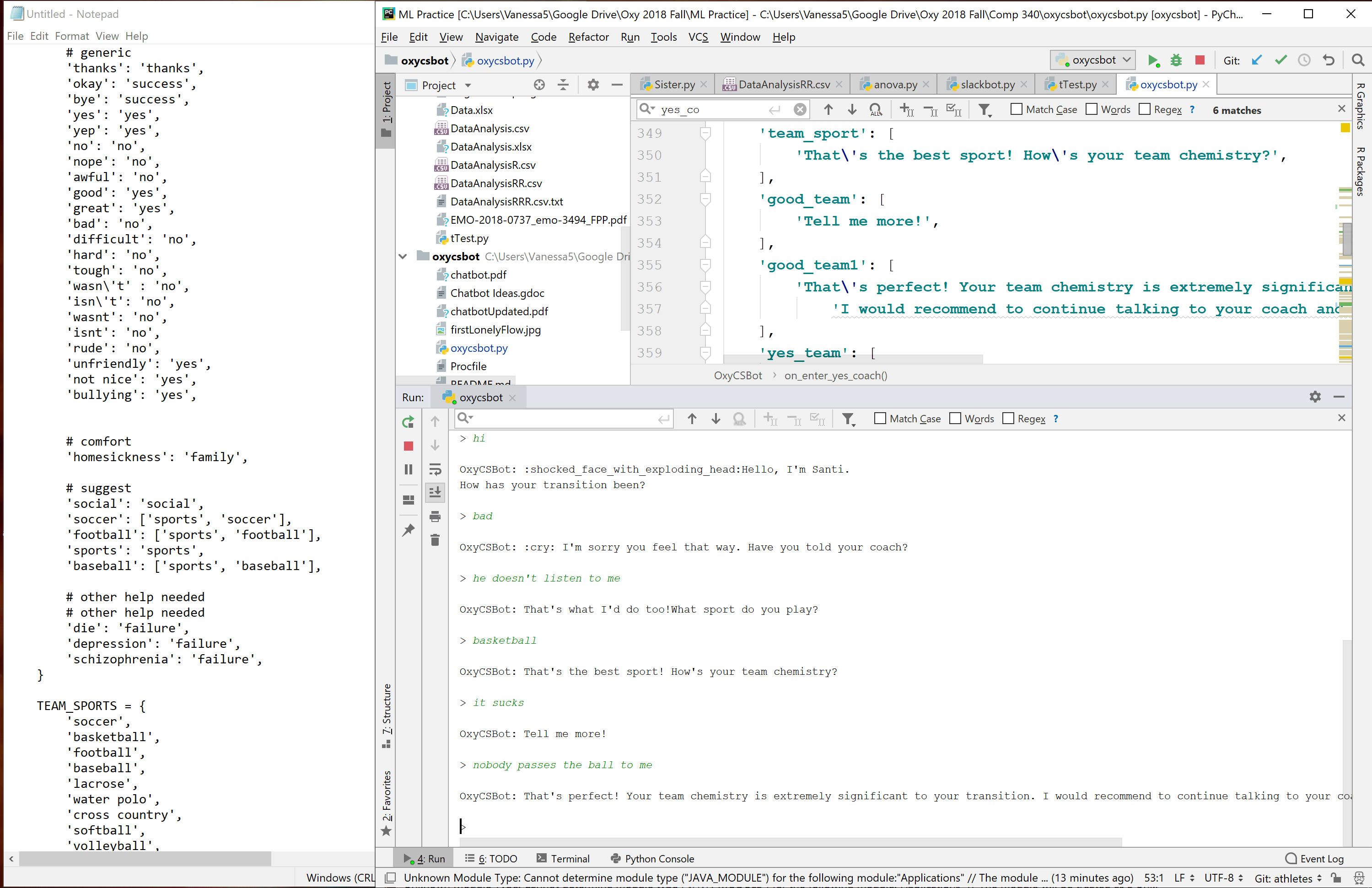
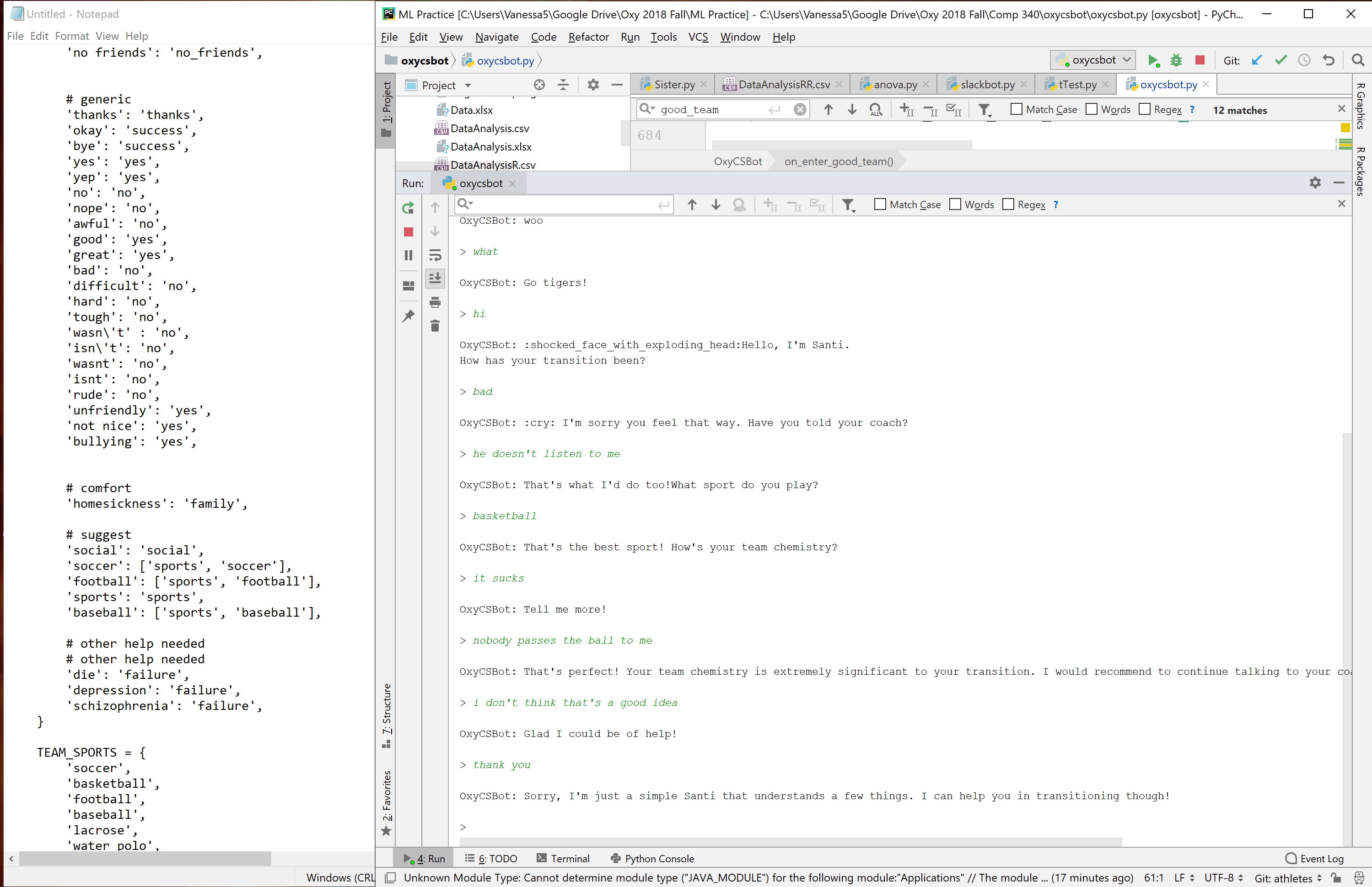
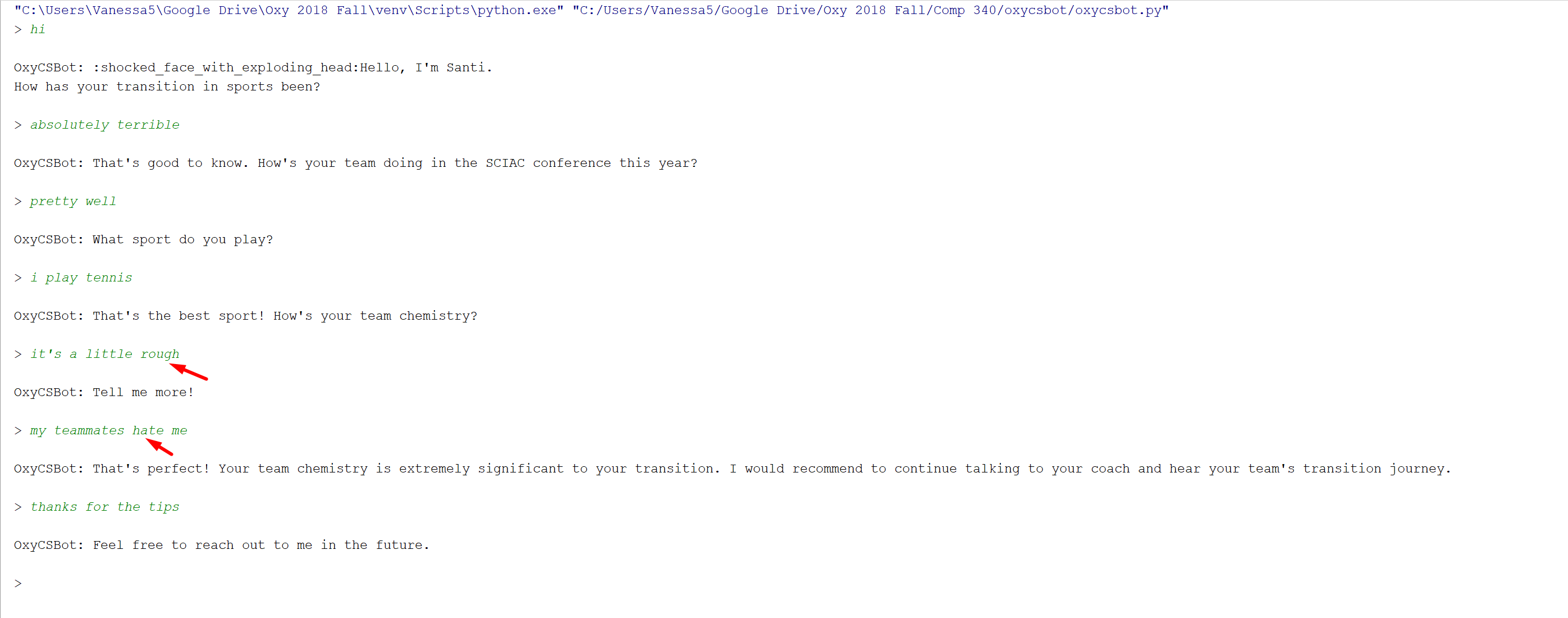
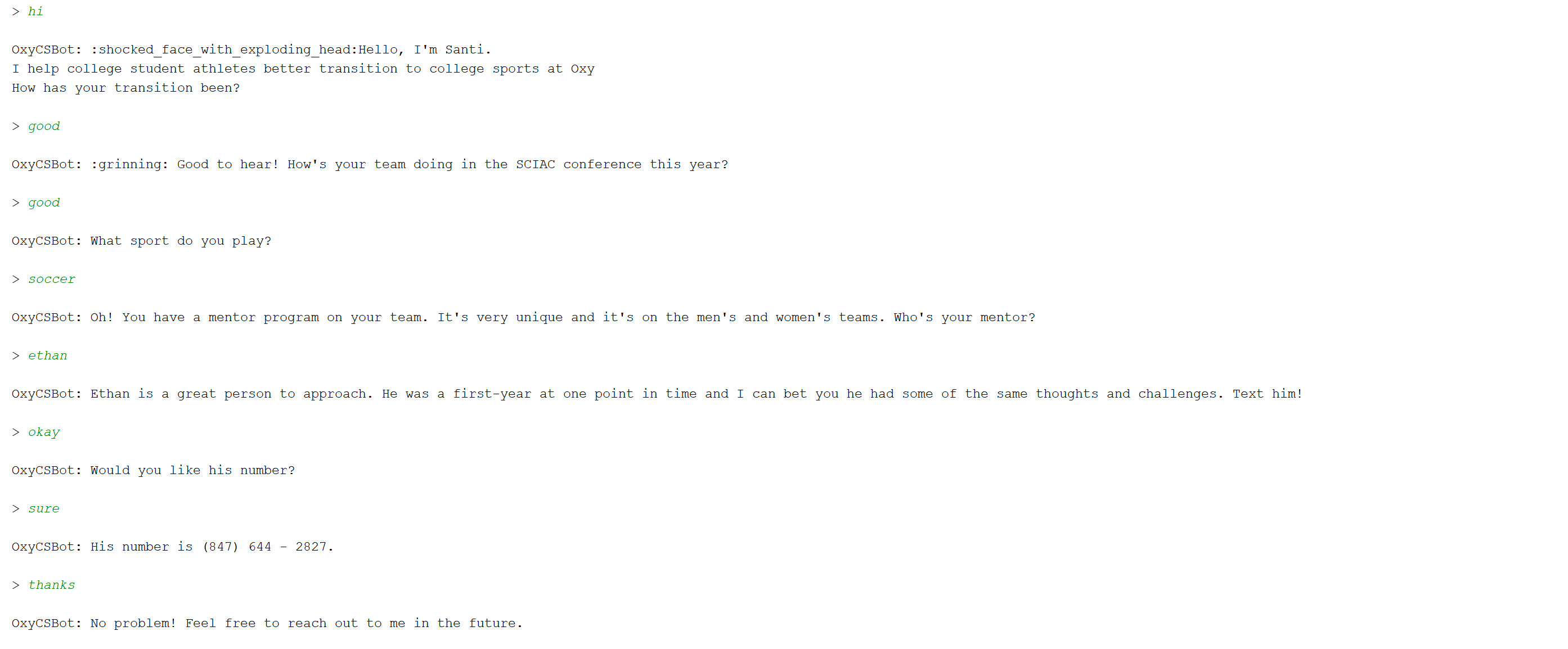
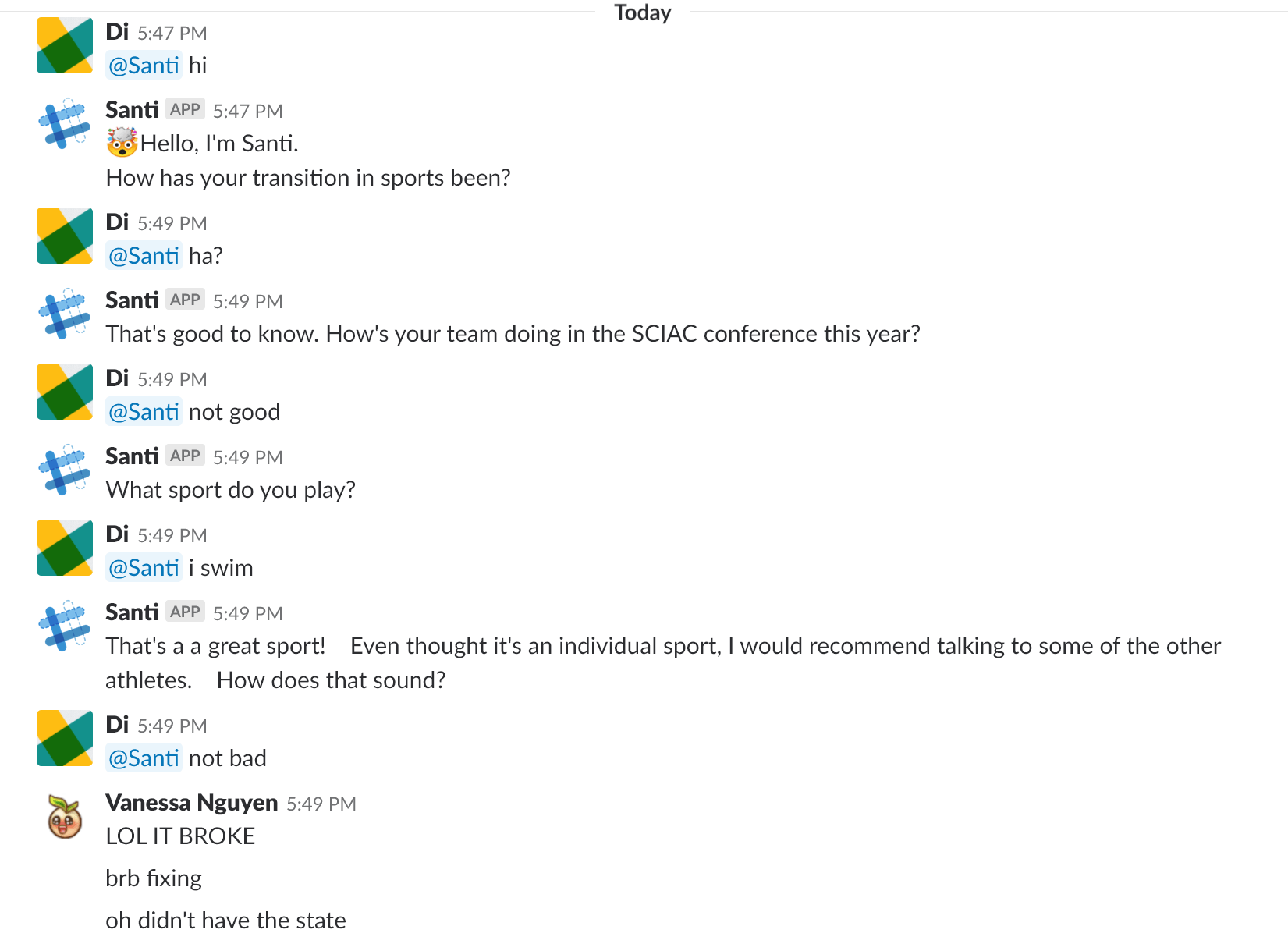
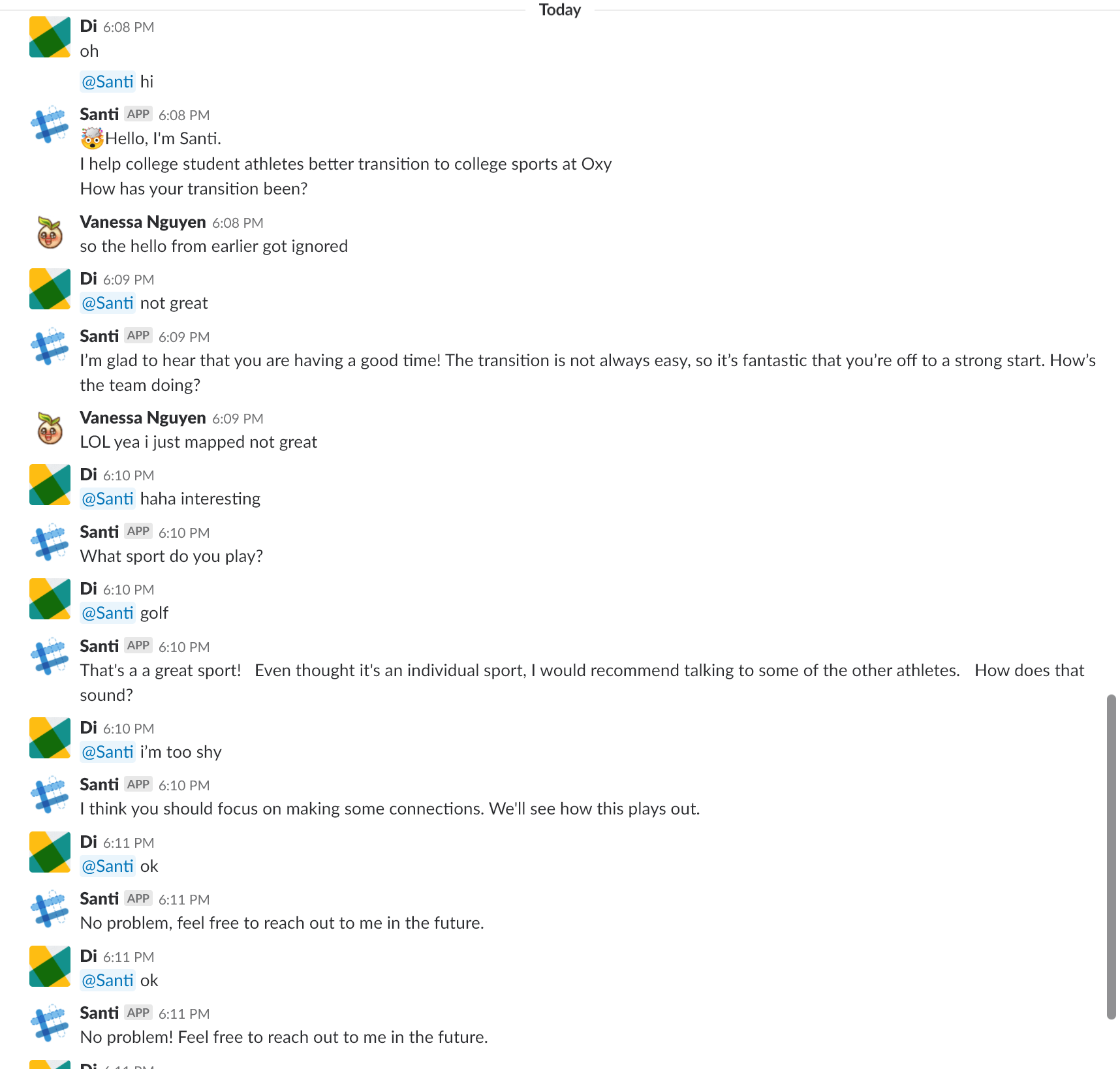


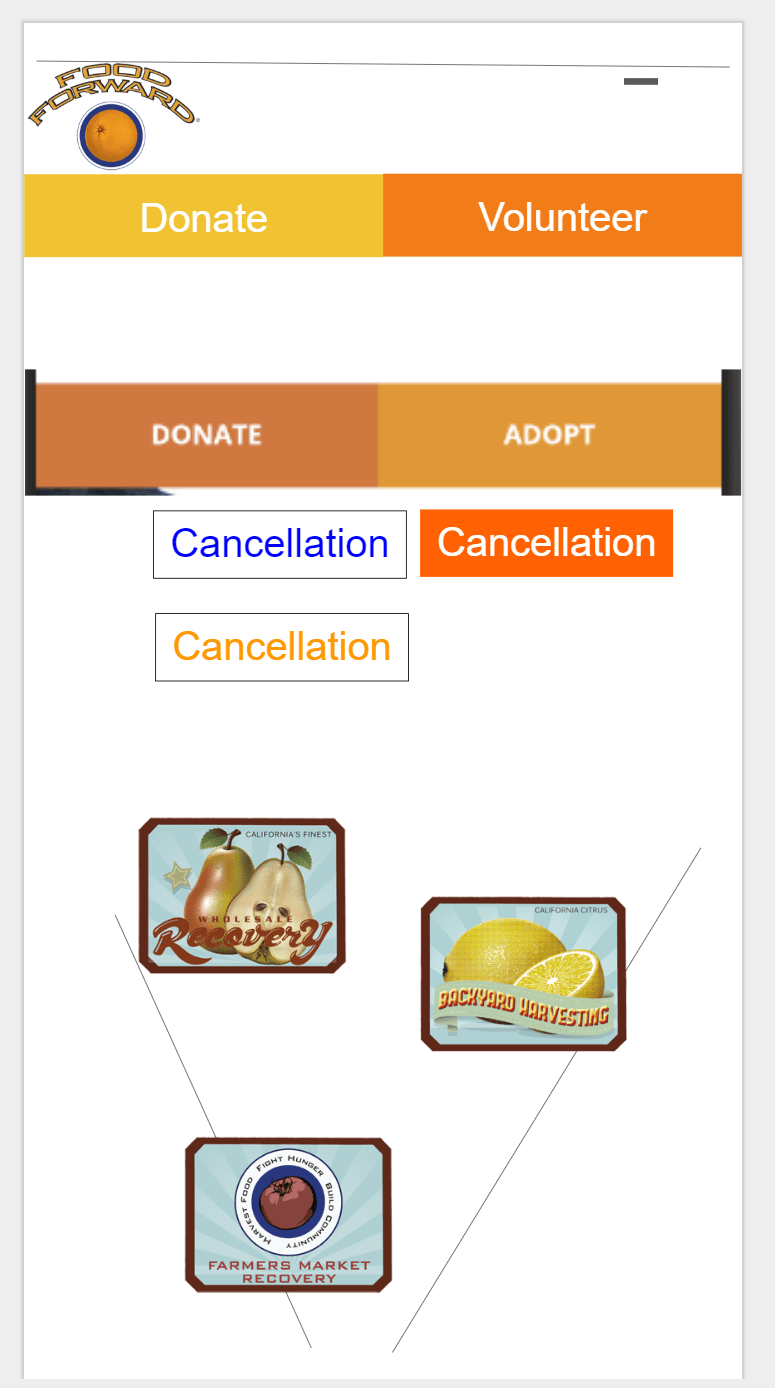
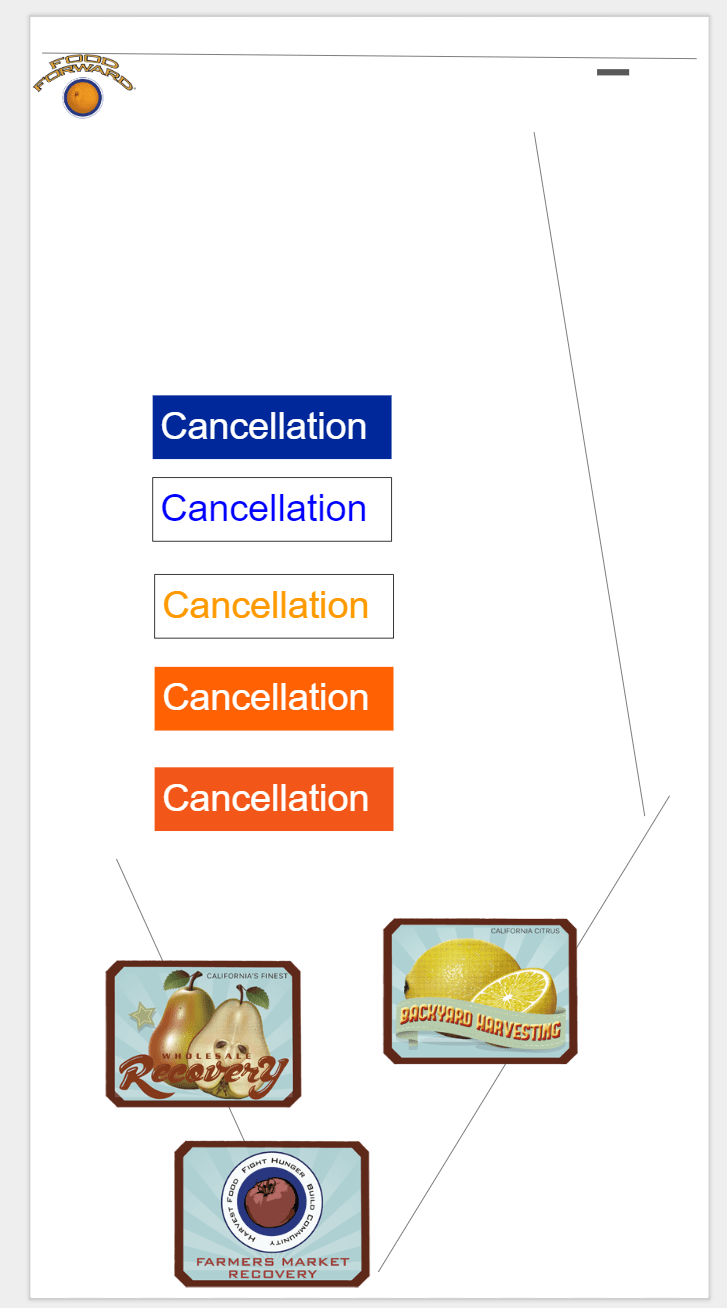


 Seluni's Adventures